Hibernate and Wake Up Computer
Hibernate Computer Now and wakeup Computer automtically. Wakeup Computer from Hibernation mode after defined duration or at defined date / time. Download and try the Software Utility to Hibernate and Wakeup Computer automatically.
How to Hibernate and WakeUp or Auto Power On
- Download and Launch the Utility.
- By Default the Utility displays an icon in System Tray.
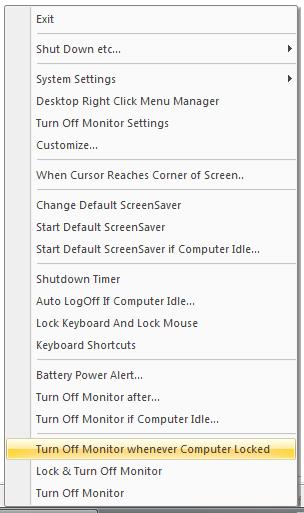
- Right Click on the System Tray Icon and click on Hibernate & WakeUp.
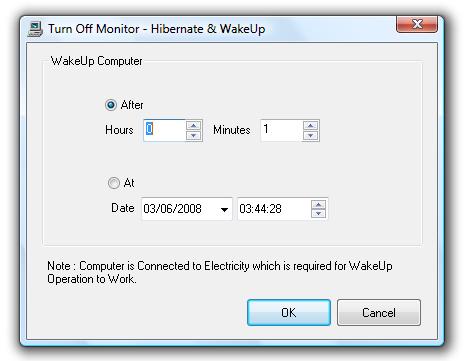
- Above action will display a dialog box as displayed below.
- Select the appropriate option & enter the duration after which utility should Wake Up / Resume or Auto Power On computer or enter the date / time at which utility should WakeUp / Resume or Auto Power On Computer.
- Now when you click on OK, the dialog box will be closed and computer will Hibernate (provided your computer supports Hibernation and can WakeUp).
Note : Working of Hibernate and Wakeup option depends on Computer Hardware and hence it would be a great idea to do a test run before actually using the functionality, also our tests suggest that in order for the WakeUp Option to work, computer must be connected to AC Power and WakeUp Option does not work when Laptop is working on Battery.
Hibernate and WakeUp Dialog Box
Tray Menu to Launch Hibernate and Wakeup
Navigate to Monitor Off page for indivual features list.